Sign In to Your GFiber Account
Sign In to the GFiber Mobile App
Before you begin, download the GFiber App from the Google Play Store or the App Store.
- Open the GFiber App and tap the Sign In button. On iOS devices, tap the Continue button to allow the app to sign you in.
- Choose a sign-in method.
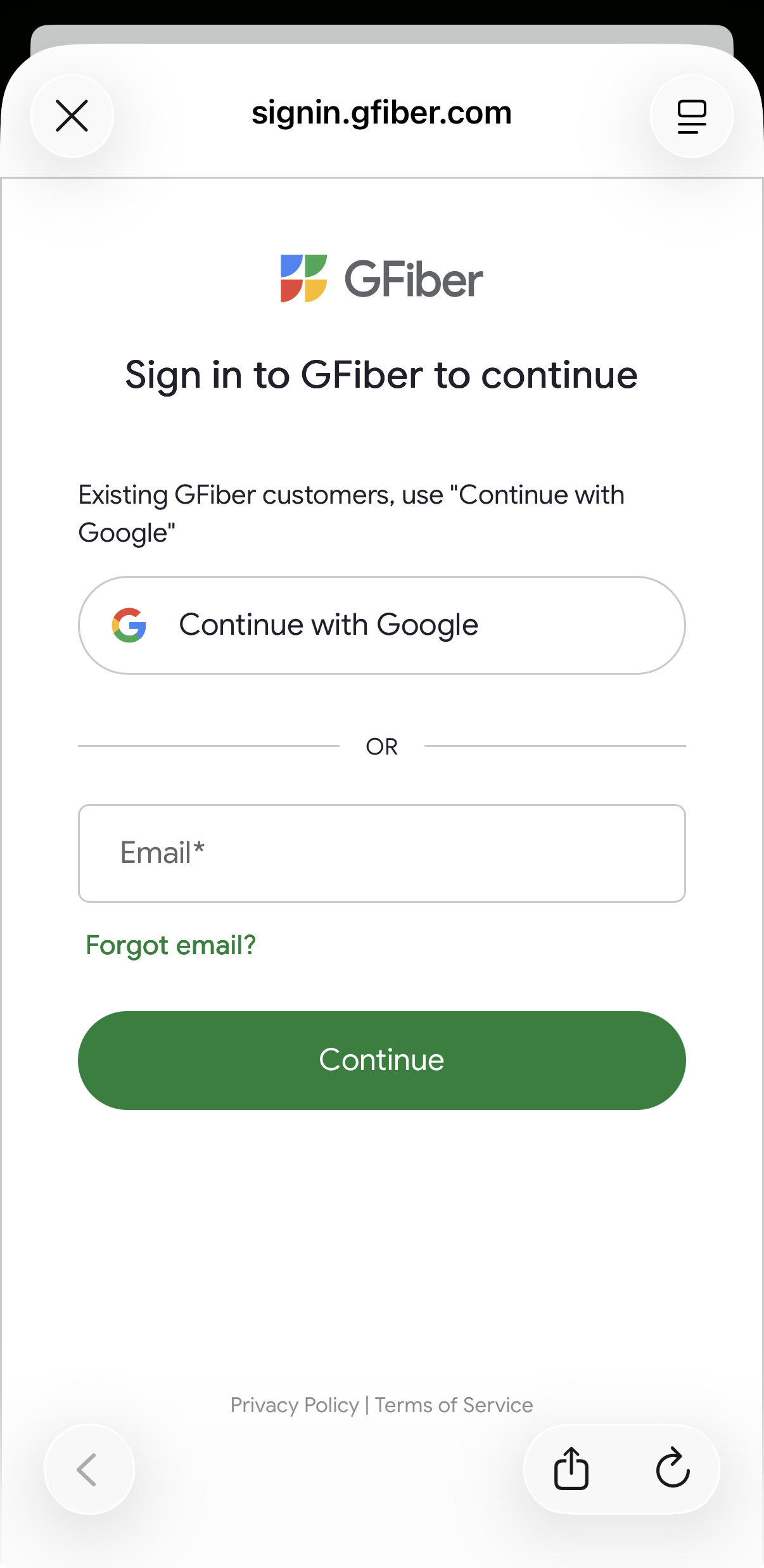
- Signed up for GFiber before February 3, 2026? Tap Continue with Google, then select the Google Account linked to your GFiber service. Enter your password or other details if prompted.
- Signed up for GFiber on or after February 3, 2026? Sign in using the method you chose at signup — either Continue with Google or your Email address.
- If you use your Email address: Enter your email and password, or select Email me a one-time code for a passwordless login.
 Webpass customers: Always use the Email sign-in method.
- If you use your Email address: Enter your email and password, or select Email me a one-time code for a passwordless login.
- Tap the Continue button, then follow the prompts to finish signing in.
Sign In to Your GFiber Web Portal
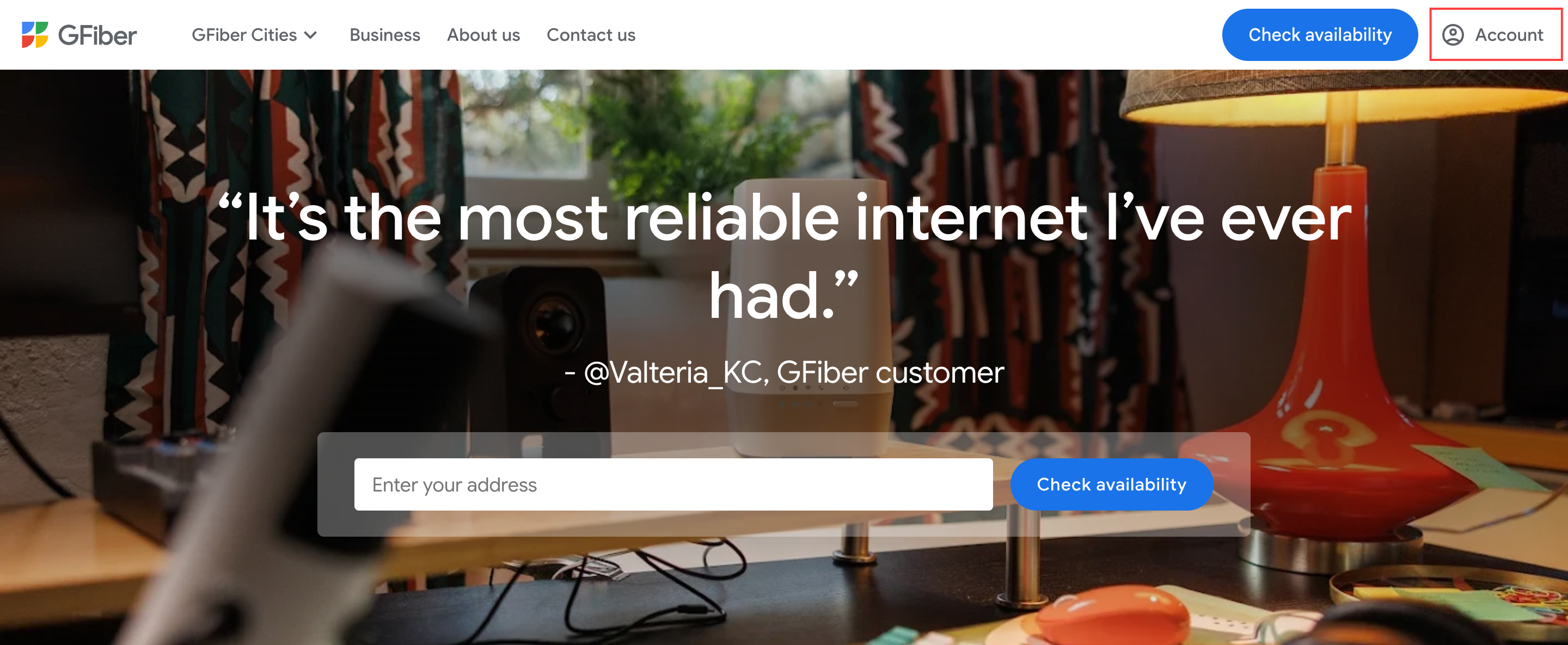
- Go to the GFiber sign-in page. You can also visit gfiber.com and click the Account button. If you’re already signed in, you’ll be taken directly to your account.
- Choose a sign-in method.
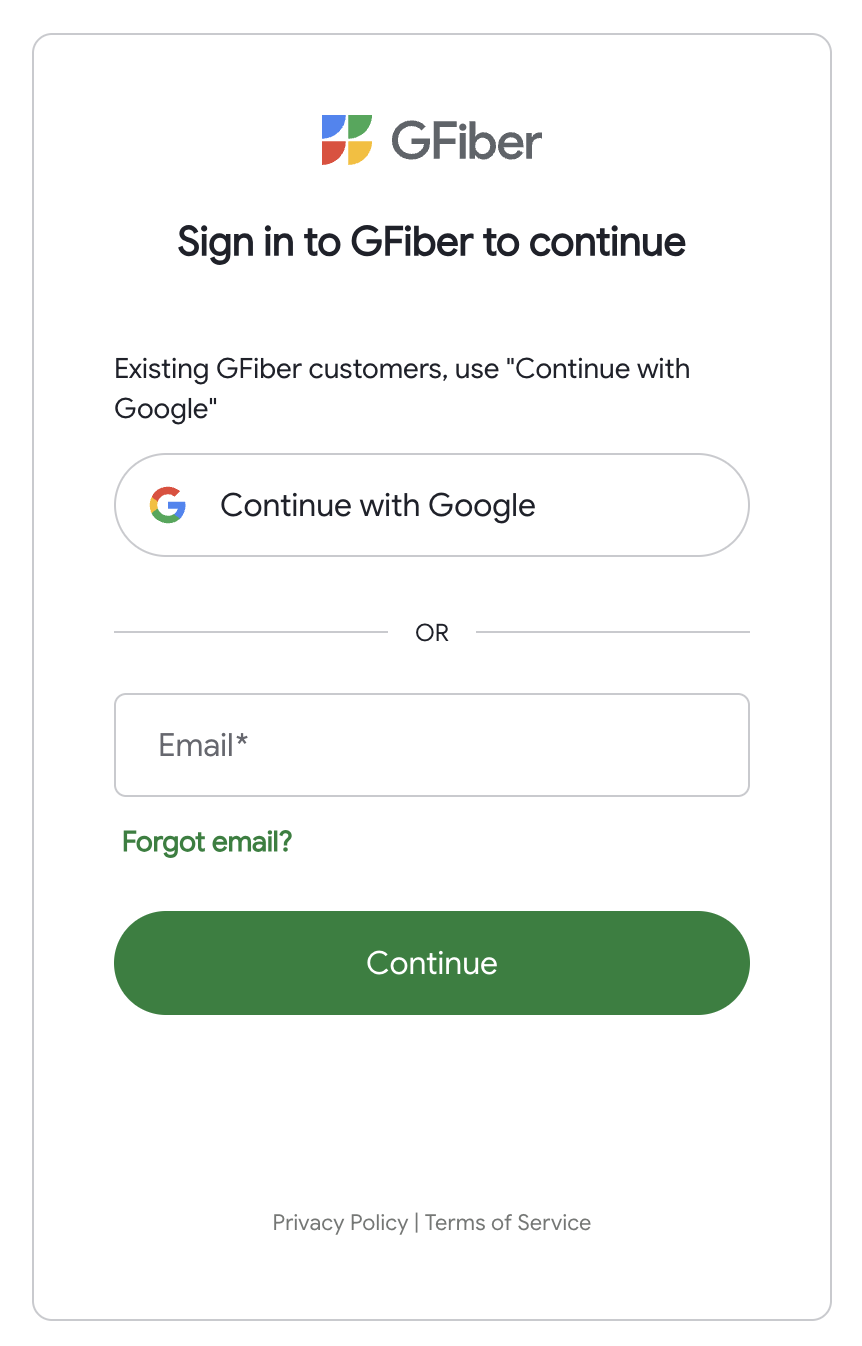
- Signed up for GFiber before February 3, 2026? Tap Continue with Google, then select the Google Account linked to your GFiber service. Enter your password or other details if prompted.
- Signed up for GFiber on or after February 3, 2026? Sign in using the method you chose at signup — either Continue with Google or your Email address.
- If you use your Email address: Enter your email and password, or select Email me a one-time code for a passwordless login.
Webpass customers: Always use the Email sign-in method.
- If you use your Email address: Enter your email and password, or select Email me a one-time code for a passwordless login.
- Click the Continue button to access your account.
Troubleshoot Sign-In Issues
- Signed up for GFiber before February 3, 2026? Use Continue with Google to sign in.
- Signed up for GFiber on or after February 3, 2026? Sign in using the method you chose at signup — either Continue with Google or your Email address.
- Webpass customer? Always use the Email sign-in method.
If you see a message saying your account isn't found, it usually means you’re signed in with a different email or Google Account than the one linked to your GFiber service. Select Try again and follow these steps based on when you signed up:
- Signed up before February 3, 2026? Use Continue with Google to sign in.
- Signed up on or after February 3, 2026? Sign in using the method you chose at signup — either Continue with Google or your Email address.
- Webpass customer? Always use the Email sign-in method.
If you aren't seeing a password reset email in your inbox, it's likely because your GFiber account is linked to your Google Account. To access your settings, simply sign in using the Continue with Google method rather than the email and password option.
Follow these steps to get signed in:
- Go to the GFiber sign-in page.
- Click the Sign in with Google button.
- Enter your Google Account credentials.
How you reset your password depends on your sign-in method:
-
Google Account: Reset your password through Google. Follow the steps to reset your Google Account password.
-
Email: Select the Forgot password? link on the sign-in screen and follow the instructions sent to your email. For more help, see how to recover your GFiber account password.
Password loops may happen when you try to reset a password for a Google Account through the GFiber app.
- Using Continue with Google? (most common) You don't have a separate GFiber password. Simply sign in using your Google Account password.
- Using your email address? On the sign-in screen, you have two options to access your account:
- Select the Email me a one-time code link for a quick, passwordless login.
- Select the Forgot password? link to create a new password, or follow our password recovery guide.
If your account is locked after multiple failed sign-in attempts or for other security reasons, contact us to get it unlocked.
Your GFiber account is created when you sign up for service. If you don't have a GFiber account yet, you'll need to sign up for service first.